
Guides / Help
Install the app and turn on notifications
2 min read · By the Northern Lights Forecast team · Published
The app installs straight from your browser. It takes a few seconds, opens like any other app, and on iPhone it is what makes notifications possible.
iPhone
- Open the site in Safari.
- Tap the Share button, then Add to Home Screen.
- Open the app from the new icon on your Home Screen, then turn on alerts from the Alerts tab.
In another browser on iPhone, look for Add to Home Screen in its Share button or menu. If it isn't there, open the page in Safari.
iPhone only sends notifications to installed apps, so alerts can't be turned on from Safari itself.
Android
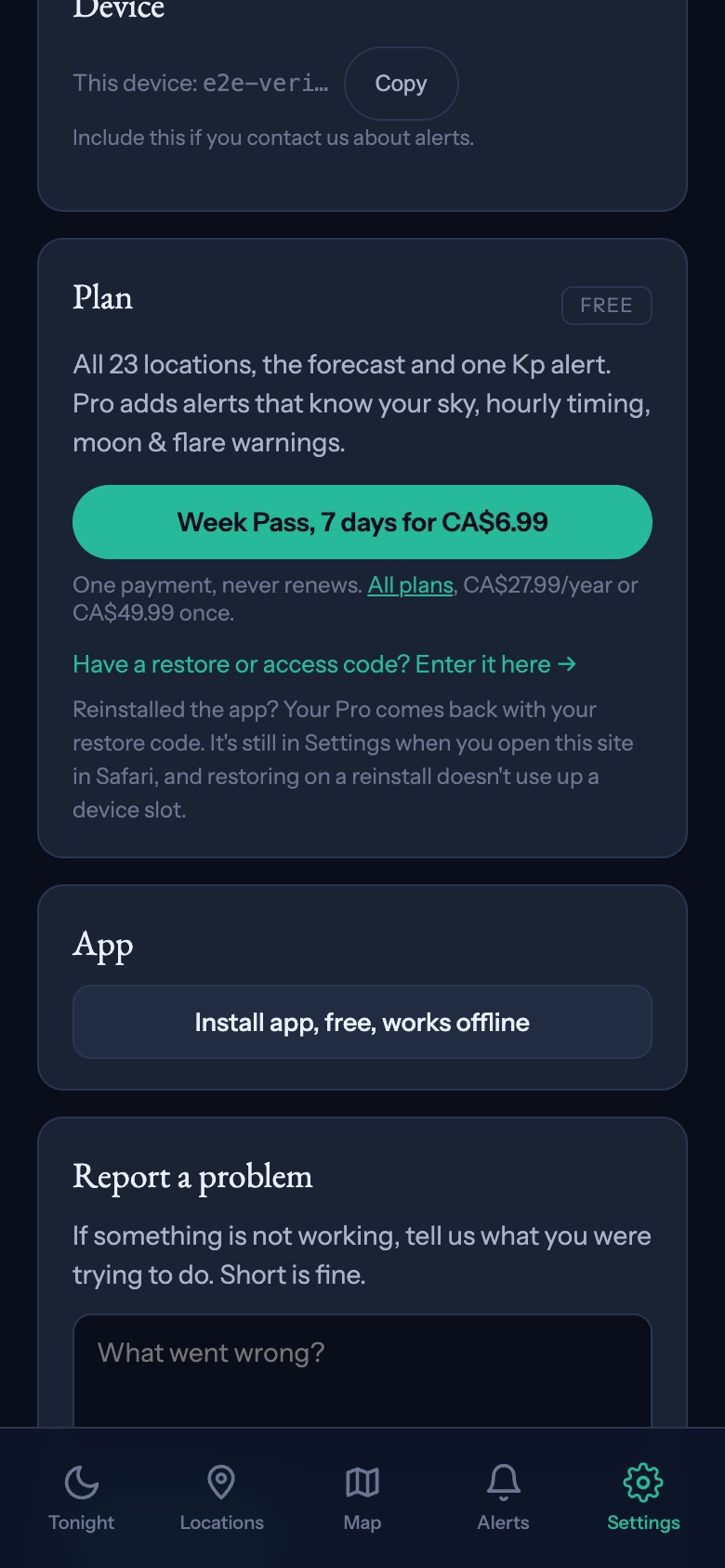
Go to Settings in the app and tap Install app, free, works offline. You can also use Install app in your browser's menu, or the install bar that appears at the bottom of the screen.
Why install
- On iPhone, it is the only way to get alerts.
- It opens straight to tonight's forecast, full screen.
- It keeps working when your connection is patchy.
If you already have Pro in Safari on iPhone, install the app and restore with your code inside it. See Pro, your devices and restore codes.
Keep reading